How to Add Filters and Text to Photos Online Without Any Design Skills
Most people don’t want to spend hours learning complicated software just to make a photo look good. Whether you’re polishing an image for social media, creating a flyer for your small business, or just adding a caption to a picture you love, you need a tool that gets out of your way and lets you get the job done quickly. The good news is that today’s online photo editors are built for exactly that, and you don’t need a design degree or a paid subscription to start using them well.
This guide breaks down what to look for in a user-friendly online photo editor, how to use the available tools effectively, and tips for getting professional-looking results without a steep learning curve.
What Makes an Online Photo Editor Actually Easy to Use
Not every tool described as “user-friendly” delivers on that promise. When evaluating an online editor for quick photo work, ease of use comes down to a few specific qualities that are easy to overlook until you’re already frustrated.
The best tools load fast, work directly in your browser without requiring a download, and organize their editing options in a logical way. If you have to dig through three menus just to find the text tool, that’s a problem. Look for editors with a clear workspace where the image sits front and center, and where editing options appear on a side panel or toolbar that doesn’t overwhelm you.
Equally important is what happens after you’re done. A good editor lets you download your finished image at full quality, in a format you can actually use, without forcing you to upgrade or create an account just to save your work. Many tools are genuinely free for core features, so there’s no reason to settle for something clunky.
Understanding Filters: What They Do and When to Use Them
Filters are pre-set adjustments that change the mood, tone, and overall look of a photo with a single click. They can warm up a cold-looking image, give a photo a vintage film feel, boost contrast for a more dramatic result, or soften colors for something more dreamy and editorial.
The key to using filters well is restraint. A filter should enhance what’s already there, not completely transform the image into something unrecognizable. Most online editors let you apply a filter and then reduce its intensity using a slider, which is the best approach. Start at around 50 to 70 percent strength and adjust from there based on what looks natural.
Different types of photos call for different filter styles. Portraits often benefit from warm, softening filters that flatter skin tones. Landscape and travel photos can handle more dramatic contrast or color shifts. Food photography typically does well with brightness boosts and warm tones that make colors pop. Try a few options before committing, since most editors let you preview filters before applying them.
How to Add Text to a Photo Without It Looking Cheap
Text on images is everywhere, and when it’s done poorly, it stands out immediately. The font choice, size, color, and placement all matter, and getting these wrong can make an otherwise great image look amateurish.
Start by choosing a font that fits the tone of the image. A bold sans-serif font works well for attention-grabbing social media content. A lighter, serif font reads as more editorial and sophisticated. Script fonts can feel personal and warm, but they can also be hard to read if they’re too small or placed over a busy background.
Placement is just as important as font choice. Text placed over a solid or blurred area of the image is much easier to read than text dropped directly onto a detailed, high-contrast background. Many editors let you add a semi-transparent box or shape behind your text, which is an easy fix when the background is cluttered. Contrasting colors are your friend: white text on a dark image, dark text on a light one.
8 Tips for Getting Great Results Faster
These tips apply across most online photo editors and will help you get from a raw photo to a finished, polished image in a matter of minutes.
- Start with the right canvas size. Before you do anything else, make sure your image is set up for the platform where it will be used. Social media platforms each have preferred image dimensions, and working at the right size from the start prevents cropping or stretching issues later.
- Adjust brightness and contrast before applying a filter. Filters work better on a well-exposed image. If your photo is too dark or washed out, a quick brightness and contrast adjustment before layering on a filter will give you a much cleaner result.
- Use the enhancement sliders instead of relying entirely on filters. Filters are a great starting point, but manual sliders for saturation, warmth, and sharpness let you fine-tune the look. Most editors have these options, and they give you more control without being complicated.
- Keep your text to one or two font styles per image. Mixing too many fonts makes an image look cluttered and unfocused. Stick to one primary font for your main message and, if needed, a complementary secondary font for supporting text.
- Use negative space strategically. If you’re planning to add text, look for areas in your photo with less detail, like a clear sky, a solid wall, or a soft blurred background. This is where your text will be most legible.
- Try the background removal tool for quick graphic-style edits. Many free editors now include one-click background removal. This is surprisingly useful even if you’re not creating a graphic design piece, since it lets you isolate a subject and place it over a different background or color to create a clean, eye-catching image.
- Resize for every platform before you download. Instead of downloading one image and manually adjusting it for each use, look for an editor that lets you resize to preset social media dimensions. This saves time and ensures your image looks right wherever you share it.
- Save your project before downloading. If the editor you’re using allows you to save your work in progress, do it. This lets you go back and tweak the text or filter later without starting from scratch, which is especially helpful if you create content on a recurring schedule.
A Practical Walkthrough: Editing a Photo in Adobe Express
If you want a concrete example of how to put these tips into practice, here is a step-by-step look at editing a photo using the Adobe Express image editor.
Start by uploading your photo directly from your device or choosing one from the built-in library of free stock images. The workspace puts your image in the center with a panel on the left side that gives you access to all editing tools without cluttering the screen.
From there, click into the Enhancements section to fine-tune brightness, contrast, saturation, warmth, and sharpening using simple sliders. Once the base adjustments look good, browse the preset filter categories: Essentials for natural, classic looks; Vibrant for bold color; and Mood for more stylized effects. Each filter has a shuffle option that cycles through variations so you’re not just stuck with a single interpretation.
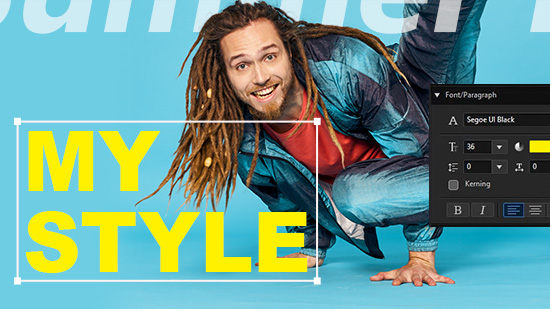
To add text, select the text tool and click anywhere on the image to place a text box. You can choose from thousands of Adobe Fonts, adjust the size and color, and reposition the text anywhere on the canvas. If the background behind your text is busy, use the Adjustments panel to apply a blur effect to specific areas, or add a shape layer with reduced opacity behind the text for contrast.
When you’re satisfied with the result, use the built-in Resize tool to adjust the canvas to any common social media format before downloading. The whole process from upload to download can take under five minutes once you’re familiar with the layout, and the free plan includes all core editing features without requiring a paid subscription.
Choosing the Right Tool for Your Workflow
Different people have different needs, and the best online photo editor is the one that fits your specific situation. If you mostly create content for one platform, look for a tool that offers preset canvas sizes for that platform and templates that match the type of content you make most often.
If you create content across multiple channels, a tool with a resize feature is worth prioritizing. Being able to take one finished design and instantly export it in multiple dimensions without rebuilding the entire project from scratch is a real time-saver when you’re managing more than one account or campaign.
Think also about how often you come back to the same types of projects. Some editors let you save project files so you can update a recurring design, like a weekly post template or an event flyer, without rebuilding it from scratch each time. This kind of workflow efficiency adds up quickly if you’re producing content regularly.
How to Match Your Editing Style to Your Brand
If you’re editing photos for a business, personal brand, or consistent social media presence, consistency in your editing style matters as much as the quality of individual images. A feed or profile that uses the same filter tones, similar typography, and a consistent color palette looks intentional and professional, even if each individual image was edited in minutes.
The easiest way to achieve this consistency is to pick one or two go-to filters and stick with them. Many editors let you apply recent or favorite filters with one click, which makes it easy to maintain a consistent look without having to remember exact settings every time.
For text, save your preferred font, size, and color combinations as a mental template, or look for an editor that lets you duplicate past designs. Reusing a layout you’ve already polished is almost always faster than starting fresh, and it ensures your visual identity stays cohesive across everything you publish.
FAQ
Do I need to create an account to use an online photo editor?
Many online photo editors offer at least some functionality without requiring you to sign up, though creating a free account usually unlocks the ability to save your work, access templates, and use more advanced features. For occasional edits, a no-account option might be enough. But if you’re editing photos regularly, even a basic free account is worth creating since it saves time and lets you return to unfinished projects. Most sign-up processes take less than two minutes and only require an email address.
Can I add text to a photo on my phone, or do I need a computer?
Most major online editors have either a mobile app or a mobile-optimized browser version that works well on smartphones and tablets. The editing experience on mobile is generally straightforward for tasks like adding text and applying filters, though working on a larger screen gives you more precision when positioning text or making fine adjustments. If you’re primarily editing on a phone, look for an editor with a dedicated app rather than just a browser-based mobile version, since apps tend to be more responsive and better optimized for touch input.
How do I make sure the text on my photo is readable?
The single most important factor in text readability is contrast between the text color and the background it’s sitting on. White text on a dark or busy background and dark text on a lighter, simpler background are the two most reliable combinations. Beyond color, font size matters: text that looks fine on your editing screen may be hard to read when the image is viewed as a thumbnail or on a small phone screen. It’s worth zooming out or previewing the image at a smaller size before downloading. If contrast is still an issue, adding a semi-transparent rectangle or shape behind the text is a simple fix that works every time.
What file format should I download my edited photo in?
For most online uses, including social media posts, website images, and email graphics, JPG is the standard choice because it keeps file sizes manageable while maintaining good visual quality. PNG is the better option when your image has a transparent background, such as a logo or a product image with no background, since PNG preserves transparency and JPG does not. If you’re planning to print the image rather than post it digitally, a higher-quality PNG or a format like TIFF will preserve more detail. For sharing edited images with others before you publish them, a tool like Google Drive makes it easy to organize, store, and share image files without clogging up your email.
Is it possible to get professional-looking results without any design experience?
Yes, and this is exactly what modern online photo editors are designed to make possible. The tools available today do a lot of the heavy lifting for you: preset filters are built by professional designers, font pairings are often suggested automatically, and templates give you a starting layout you can customize rather than build from scratch. The biggest shift for beginners is moving away from the idea that editing has to be complicated to be effective. A clean, well-lit image with one well-chosen filter and clearly readable text will almost always look better than an over-edited image with too many effects. Start simple, trust your instincts, and make small adjustments rather than big ones.
Conclusion
Adding filters and text to photos online does not have to be a technical challenge or a time-consuming process. The tools available today put professional-quality results within reach of anyone, regardless of their design background or experience level. What matters most is knowing what you want to communicate, choosing a simple and well-organized editor, and applying a few basic principles around contrast, consistency, and restraint.
Start with a single photo, follow the tips in this guide, and give yourself permission to experiment. Most edits take only a few minutes, and the more you practice, the faster and more confident you’ll become. Good-looking images are less about natural talent and more about knowing which tools to use and how to use them simply.